INNEHÅLLSFÖRTECKNING
- 1. System Overview
- 2. Getting Started
- 3. MediusGo Setup Page
- 4. Synchronization
- 5. Purchase Order matching
- 6. Purchase invoices
- 7. Supported Languages
- 8. Support
1. System Overview
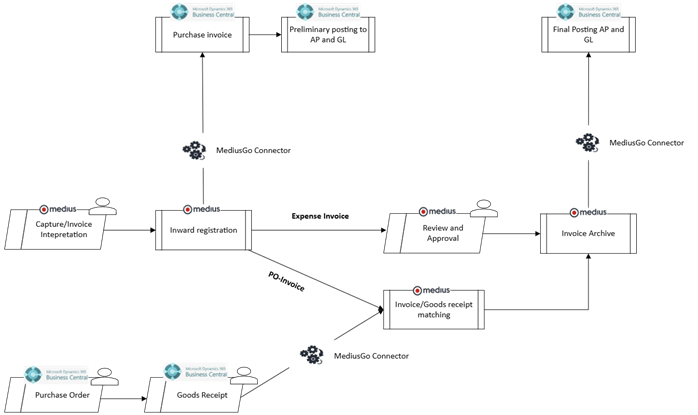
Below illustration shows a simple overview of the integration.
2. Getting Started
2.1 Assisted configuration
2.2 Initial Setup
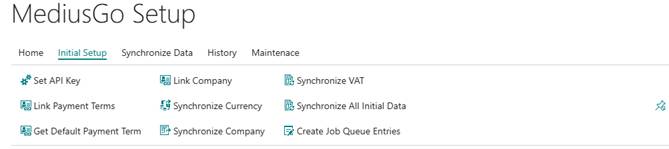
If you do not use the assisted setup or need to change the setup on some parameter. This is done on menu tab Initial Setup, it needs to be done in this order:
- Set API key – Manually set a API key for your MediusGo tenant.
- Get Default Payment Term – Set your default payment term
- Link Company – Links your company in Business Central to your MediusGo tenant
- Synchronize Currency – Synchronize your currencies to MediusGo and create the currency register in Medius
- Synchronize Company -
- Synchronize VAT – Synchronize the VAT Business, Product and Posting setup to MediusGo
Other settings on the Initial Setup Meu
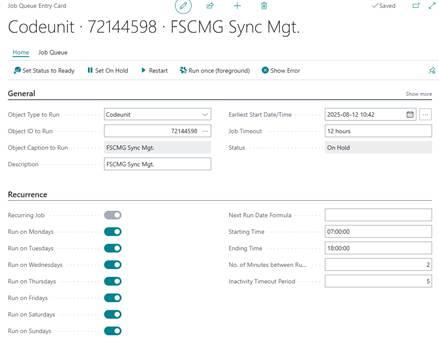
Create Job Queue Entries – Creates the job queue entry for the automatic synchronization to run every day with 2 minutes apart between 07:00-18:00.
Link Payment Terms – Map the payment terms from Business Central with the Payment terms in Medius
Synchronize all Initial Data – Manually synchronize all the data, such as Dimensions, Vendors, G/L Accounts etc.
3. MediusGo Setup Page
3.1 General Setup
On the fast tab General you set up settings such as Inward registration of purchase invoices or invoice checks of amounts etc.
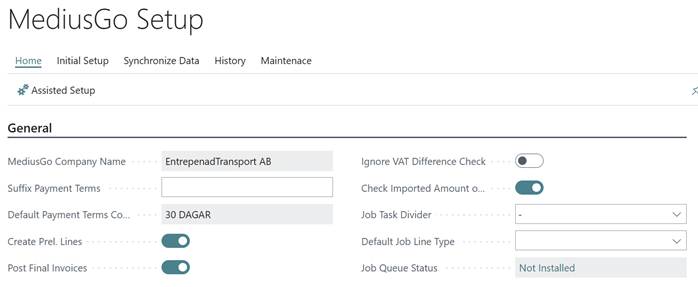
Create Prel. Lines – Creates the preliminary posting lines for the purchase invoice
Post Final Invoices – If Yes it posts the final invoice automatically in Business Central when the invoice is fully approved in MediusGo
Store Attachments as incoming documents –
Ignore VAT Difference check – When this is activated the system will ignore if there is any difference in the VAT when posting, this can be useful when handling for example car leasing invoices in Sweden where it is special VAT rules.
Check Imported Amount on posting – Controls if the sum of invoice lines equals to the imported amount of the invoice.
3.2 Dimensions
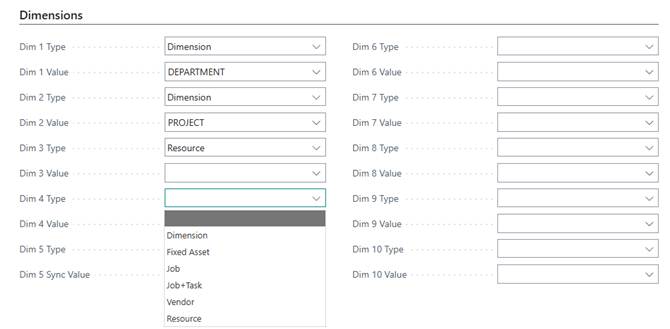
On the Dimensions fast tab in on the MediusGo setup page you can map which data type should be mapped to which dimension in MediusGo
3.3 Inward Registration

Create Inw. Registration – If this is checked it will use the inward registration of invoices in Business Central.
Inw. Reg Code unit – Selects Codeunitid of the Codeunit to use for Inward Registration. 71708614 for Settled, 12048931 for Swebase
3.4 Custom Field Mapping
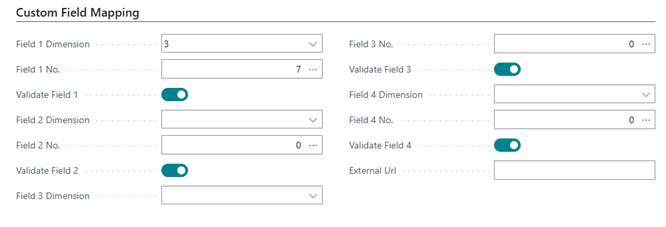
With the help of Custom Field Mapping, it is possible to decide if you want to put a value in a different field on the purchase invoice.
Field 1 Dimension – Which Dim Type from the fast tab Dimensions you want to map.
Field 1 No. – Which field on the purchase invoice you want to map the value to.
Validate Field 1 – Yes/No if you want to run a validation of the field and background jobs that you have chosen.
For example, if you want to map Resource to Location Code on the purchase invoice it could look like this with our setup.
3.5 Storage
Enable the Export Attachment Data if you want to store the invoices in PDF format on a external storage, this can be useful if you are running with for example PowerBI to visualize the invoice images in PBI.

3.6 Synchronization and logging
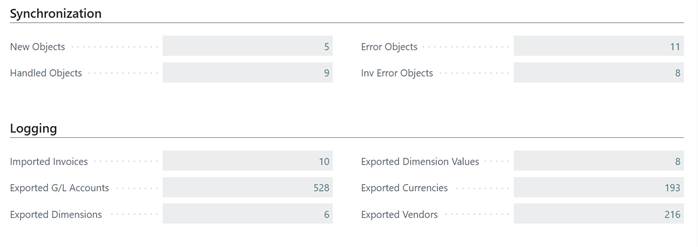
Keep track on your synchronization objects and invoices, on the Synchronization and Logging tabs you can see how many objects and invoices that have been running through the integration. If something goes wrong, you can easily view which transaction it is and what the error message is by clicking on the number by Error Objects.
Synchronization
Click on the number of each row to see the transactions.
New Objects – View the objects that are going to be sent to MediusGo
Handled Objects – View the objects that has been sent to MediusGo
Error Objects – A list that views the objects that have been stuck with an error message and not been sent to Medius.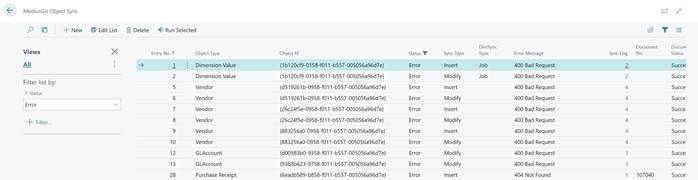
Sync Log shows the number of logs/tries this object has. Click on the number under Sync Log to show the transactions and then you can view the response message from the integration to start your troubleshooting.
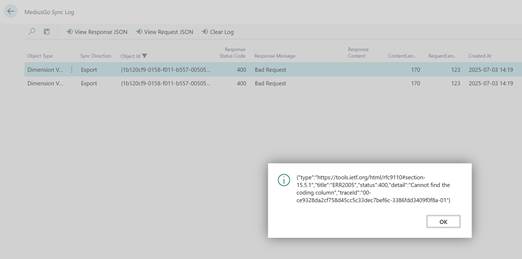
Inv Error Objects – A filtered list of invoice postings that has not been able to post in Business Central due to an error.
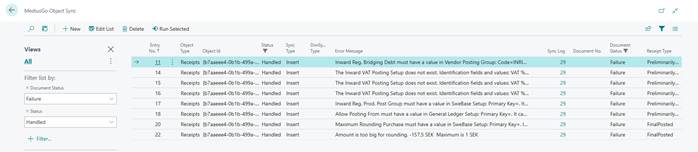
In the list you can easily see the error message that you need to correct. If you want to see more information of the actual message that is sent you can click on the number under Sync Log (29 in this case).
Logging
Under the fast tab Logging it is possible to view all the messages of, for example, imported invoices, exported G/L accounts and Vendors. Click the number to the right of for example, Imported Invoices to be able to view the messages

4. Synchronization
4.1 Master Data
Automatic synchronization
With the help of a job queue, it is possible to have your data in MediusGo and Business Central in sync. When setting the job queues from the MediusGo Setup page it will create two job queue entries:
- FSCMG Sync Mgt. – This job queue synchronizes all data from and to MediusGo
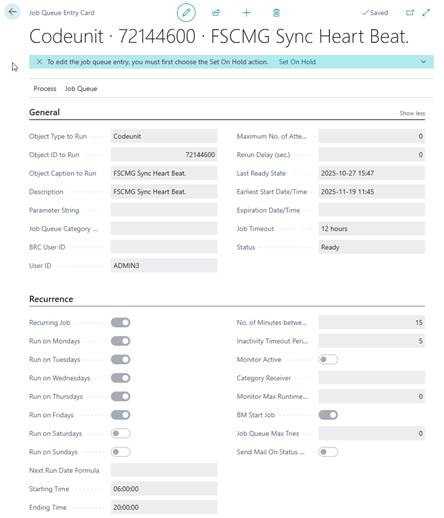
- FSCMG Sync Heart Beat. – This job queue is to secure the status of FSCMG Sync Mgt, if the job queue is in status Error, Heart Beat will set it to Ready again.

When data such as a G/L Account or a Dimension is created or changed in Business Central it will be shown on the MediusGo Setup page under the fast tab Synchronization and New Objects
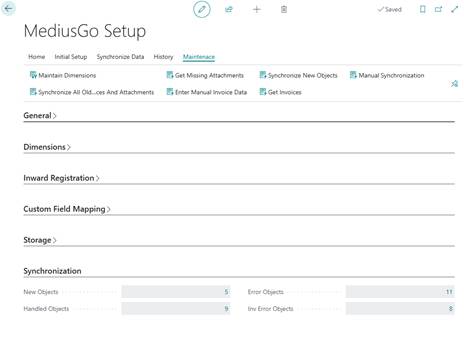
When the scheduled job queue is run it will pick these up and send it to MediusGo.
Picture below is an example of how it will be setup if you run the automatic creation of the job queue entry on the menu tab Initial Setup.
Manual synchronization
Under the Menu page Synchronize Data it is possible to manually synchronize your master data such as, for example, Chart of Accounts, Vendors and Dimensions to MediusGo. These buttons will send all the data, for example all the accounts.

Dimensions and dimension values
Chart of Accounts
Vendors
Payment Terms
4.2 Currencies
With the help of the job queue the currency rates will always be in synch between Business Central and MediusGo.
The initial synchronization will create a Currency register in MediusGo
5. Purchase Order matching
Under developement
6. Purchase invoices
6.1 Preliminary Posting
If preliminary posting is activated on the MediusGo Setup page and the setup is done in for example Swebase the integration will handle the preliminary postings of purchase invoices. When an invoice is registered in MediusGo it will be put in invoice objects to handle, and the job queue will pick it up and create the invoice and postings in Business Central according to the setup that you have made. On the purchase invoice that is created you can view the PDF in Business Central or easily navigate to Medius with the help of the links under MediusGo Document on the information tab.

6.2 Expense Invoices
First the invoice will be preliminary posted in Business Central, then it will be final posted with the same coding as the approvers have manually put in MediusGo.
6.3 Purchase order-based Invoices
Under developement
6.4 Final posting
When the invoice in MediusGo has been coded and approved according to the approval chain in MediusGo the integration will pick it up and post the preliminary invoice in Business Central. On the posted purchase invoice that is created you can view the PDF in Business Central or easily navigate to Medius with the help of the links under MediusGo Document on the information tab.
7. Supported Languages
Swedish
English
Norwegian
Finnish
Danish
Arabic
8. Support
Email: support@flankspeed.se
Support portal: portal.flankspeed.se
Var artikeln till hjälp?
Toppen!
Tack för din feedback
Vi beklagar att det inte var till hjälp
Tack för din feedback
Feddback skickat
Vi uppskattar din feedback och uppdaterar artikeln vid behov